

No system is perfect and if someone tells you that, don’t trust them! But it’s good when a system gives you the flexibility to find a workaround that doesn’t involve a hundred different manual interventions. Unfortunately, despite all the great stuff it does do (including company consolidation) Business Central does not have functionality to automatically calculate eliminations.
What are eliminations?
I’m working with a group of companies that need to carry out a monthly consolidation, as part of a consolidation process you need to work out the eliminations between companies. This stops you from double counting transactions between companies – in simple terms 2 companies in the same group selling each other £5 million pounds of goods does not equate to a £10m group turnover. This means you need to eliminate some of the transactions between the companies.
A Business Central Consolidation Eliminations Solution
I was trying to think of a quick and easy way to pull together all of the intercompany transactions so they could be reviewed and then used to create a journal. One of the many things Business Central does really well is giving easy access to the data in the system. So I decided to try and put something together using completely standard functionality using:
- Standard API’s
- Excel
- Power Query
- Microsoft Dynamics Data Connector for Excel
I’m by no means claiming this is the perfect solution and it needs some tidying up but it can be used to show how easy it is to extract, amalgamate, manipulate and push data back into Business Central using standard Microsoft tools.
The basic plan was to:
- Pull from multiple data sources – different companies in Business Central
- Consolidate into a single combined list of entries
- Group the amounts by relevant values (G/L Accounts, Companies, Dimensions)
- Format into lines that could be journalled back into Business Central
- Push back into Business Central
Getting to the Business Central Data
I built a series of Power Query connectors to the individual companies to extract the same data from each company. I connected to Business Central using one of the Standard OData apis that had all of the fields in the General Ledger Entries that I wanted:
In the Excel workbook I set up an Options tab to store a few variables that I’d use in filtering and the final stage to create Journal Lines.
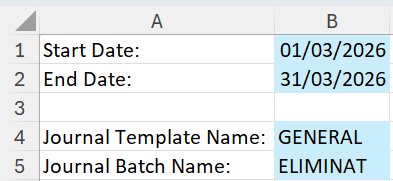
I then used a series of filters – some of which were hard coded (my bad) and some of which (date filters) came from cells in an option sheet in Excel. An example of the connection code for each of the companies is below:
let
    // 1) Connect to Business Central OData feed
    BaseUrl =   "https://api.businesscentral.dynamics.com/v2.0/{TenantID}/{EnvironmentName}/ODataV4/Company({companyName})/General_Ledger_Entries_Excel",

    Filter =
        "$filter=" &
        "(Source_No eq 'ICC*' or Source_No eq 'ICV*')" &                                     //Interco Customer & Vendor No
        " and Posting_Date ge " & Date.ToText(pStartDate, "yyyy-MM-dd") &      //Get entries with Posting Date >= Start Date
        " and Posting_Date le " & Date.ToText(pEndDate, "yyyy-MM-dd"),            //Get entries with Posting Date<= End Date

    FullUrl = BaseUrl & "?" & Filter,
    Source = OData.Feed(FullUrl, null, [Implementation="2.0"]),

    // 2) Add Business Unit Columns
    FinalSource = Table.AddColumn(
        Source,
        "Business Unit",
        each "COMPANY1",
        type text
        ),

    // 2) Keep only selected columns (edit this list)
    KeptColumns = Table.SelectColumns(FinalSource, {
        "Entry_No",
        "Posting_Date",
        "G_L_Account_No",
        "Document_No",
        "Description",
        "Source_No",
        "Source_Type",
        "Amount",
        "Debit_Amount",
        "Credit_Amount",
        "Global_Dimension_1_Code",
        "Global_Dimension_2_Code",
        "Shortcut_Dimension_3_Code",
        "Shortcut_Dimension_4_Code",
        "Shortcut_Dimension_5_Code",
        "Business Unit"
    }, MissingField.Ignore)
in
    KeptColumns
Combining & Manipulating the Business Central Data
I then built a Power Query that combined each of the individual company data connections:
let
    Consolidated =
        Table.Combine({
            #"InterCoGLE-Company1",
            #"InterCoGLE-Company2",
            #"InterCoGLE-Company3"
        })
in
    Consolidated
A final Power Query then grouped this by key values (this is kind of like a pivot table in Excel), added in a couple of additional columns that we would need in Business Central and then ordered the columns to easily push into a Business Central journal.
let
    // Source: consolidated GL entries table
    Source = #"InterCoGLE-Consolidated",

    // Ensure correct data formats
    Typed =
        Table.TransformColumnTypes(
            Source,
            {
                {"Amount", type number},
                {"Posting_Date", type date}
            },
            "en-GB"
        ),

    // Group by Account + Business Unit + Dimensions, then sum Amount
    Grouped =
        Table.Group(
            Typed,
            {
                "G_L_Account_No",
                "Business Unit",
                "Global_Dimension_1_Code",
                "Global_Dimension_2_Code",
                "Shortcut_Dimension_3_Code",
                "Shortcut_Dimension_4_Code",
                "Shortcut_Dimension_5_Code"
            },
            {
                {"Amount", each List.Sum([Amount]), type number}
            }
        ),

    // Reverse sign for elimination journal
    Reversed =
        Table.TransformColumns(
            Grouped,
            {{"Amount", each _ * -1, type number}}
        ),

    // Set Posting Date to the End Date parameter
    AddPostingDate =
        Table.AddColumn(
            Reversed,
            "Posting Date",
            each Date.From(pEndDate),
            type date
        ),

    // Remove zero lines
    NonZero =
        Table.SelectRows(AddPostingDate, each [Amount] <> 0),

    // Add Columns - Description, Document No., Journal Template, Journal Batch, Line No, Account Type
    AddDescription =
        Table.AddColumn(NonZero, "Description", each "Consolidation elimination", type text),

    AddDocumentNo =
        Table.AddColumn(
            AddDescription,
            "Document No.",
            each "ELIM-" & Date.ToText(Date.From(pEndDate), "yyyyMM"),
            type text
        ),

    AddJnlTemplName =
        Table.AddColumn(AddDocumentNo, "Journal Batch Name", each pJnlBatchName, type text),

    AddJnlBatchName =
        Table.AddColumn(AddJnlTemplName, "Journal Template Name", each pJnlTemplName, type text),

    AddLineNo =
        Table.AddIndexColumn(
            AddJnlBatchName,
            "Line No.",
            10000,
            10000,
            Int64.Type
        ),

    AddAccountType =
        Table.AddColumn(AddLineNo, "Account Type", each "G/L Account", type text),

    // Reorder columns for easy copy into BC journals
    Reordered =
        Table.ReorderColumns(
            AddAccountType,
            {
                "Line No.",
                "Journal Batch Name",
                "Journal Template Name",
                "Posting Date",
                "Document No.",
                "Account Type",
                "G_L_Account_No",
                "Description",
                "Business Unit",
                "Amount",
                "Global_Dimension_1_Code",
                "Global_Dimension_2_Code",
                "Shortcut_Dimension_3_Code",
                "Shortcut_Dimension_4_Code",
                "Shortcut_Dimension_5_Code"
            }
        )
in
    Reordered
Pushing the Eliminations Back to Business Central
I then used the standard Microsoft Dynamics Data Connector to create a template to push the data back into a Business Central General Journal. This meant that the users could simply copy the grouped data values and paste into this tab to Publish back to Business Central.
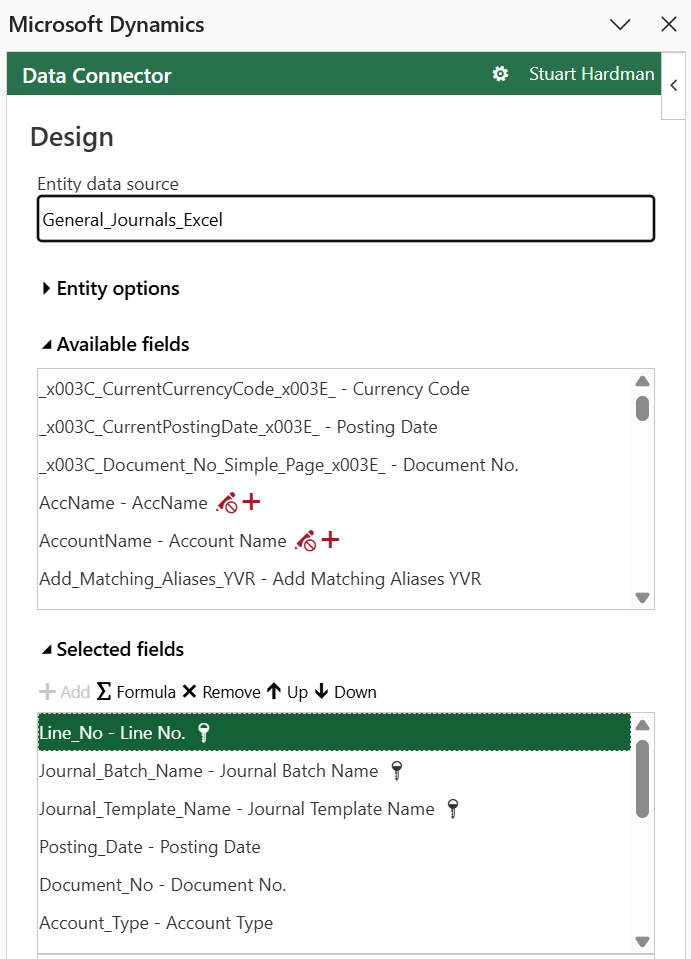
I could probably have automated this step but wanted to give the users the opportunity to review the data and make their own adjustments before pushing it back into Business Central.
I’m not an accountant and am definitely not saying this is how you should carry out your eliminations but this is one way to start easily getting access to the data that you need. The filters and manipulations can easily be changed to suit what you require and this type of process doesn’t need to be just used for eliminations.
Good luck experimenting with this!
If you’re looking to get Consolidation set up in Business Central and don’t know where to start then get in contact with us.